Working with agents
A board is a folder of plain files, so an AI agent can read and write one directly. Lanework shows every change the moment it lands, so you watch the agent work on the board as it happens. There is no account, no server and no sync step.
This page covers connecting an agent, what it does on a board, and how you answer it. For the exact files an agent writes, see Folder layout and tools.
Connect an agent
Section titled “Connect an agent”The Welcome window has an Add to Your Agent… button. To show the Welcome window, choose Window ▸ Welcome to Lanework.
- Click Add to Your Agent…. A panel titled “Add Lanework to your agent” opens.
- In Claude Code, run the two commands it shows. Each has a Copy button; the button reads Copied for a moment after you press it.
- Open a board in Lanework and ask your agent to work on it.
The commands install the Lanework skills, which teach an agent how a board works. They are:
/plugin marketplace add https://github.com/laneworkapp/lanework-skills.git/plugin install lanework@laneworkFor another agent, or to install by hand, follow the panel’s “Other agents and manual install” link.
For a walkthrough from install to a working board, using Claude Desktop, see Your first board with Claude.
Help menu links
Section titled “Help menu links”The Help menu has links to the places an agent setup is documented.
| Menu item | Opens |
|---|---|
| Lanework Help (⌘?) | The Lanework support pages. |
| Lanework Support on GitHub | The support repository, for questions and bug reports. |
| Lanework Templates on GitHub | The templates the New Board gallery offers. |
| Lanework Skills on GitHub | The agent skills, and how to install them. |
What an agent does on a board
Section titled “What an agent does on a board”An agent works the board the same way you do: it files cards, moves them between lanes, edits titles and bodies, attaches files, and comments. Each board carries an agent guide, kept up to date by the app, that tells the agent how. Anything you want it to know about this particular board, such as how you want cards written, goes in the board’s description. Edit it in Board Settings. See Settings.
Agents sign what they write, so you can tell their work from yours. The name on a comment is the name the agent gave itself. Your own Handle, set in Settings, is how an agent addresses you.
Keep an agent watching
Section titled “Keep an agent watching”An agent normally acts when you ask it to. To have one react to the board as it changes, start a watch in your session with /lanework:watch. A watching agent picks up a card when you move it into a lane the agent works from. See Running agents from the board.
Read what an agent wrote
Section titled “Read what an agent wrote”Open a card and read its thread, the comments column of the card window. See Comments.
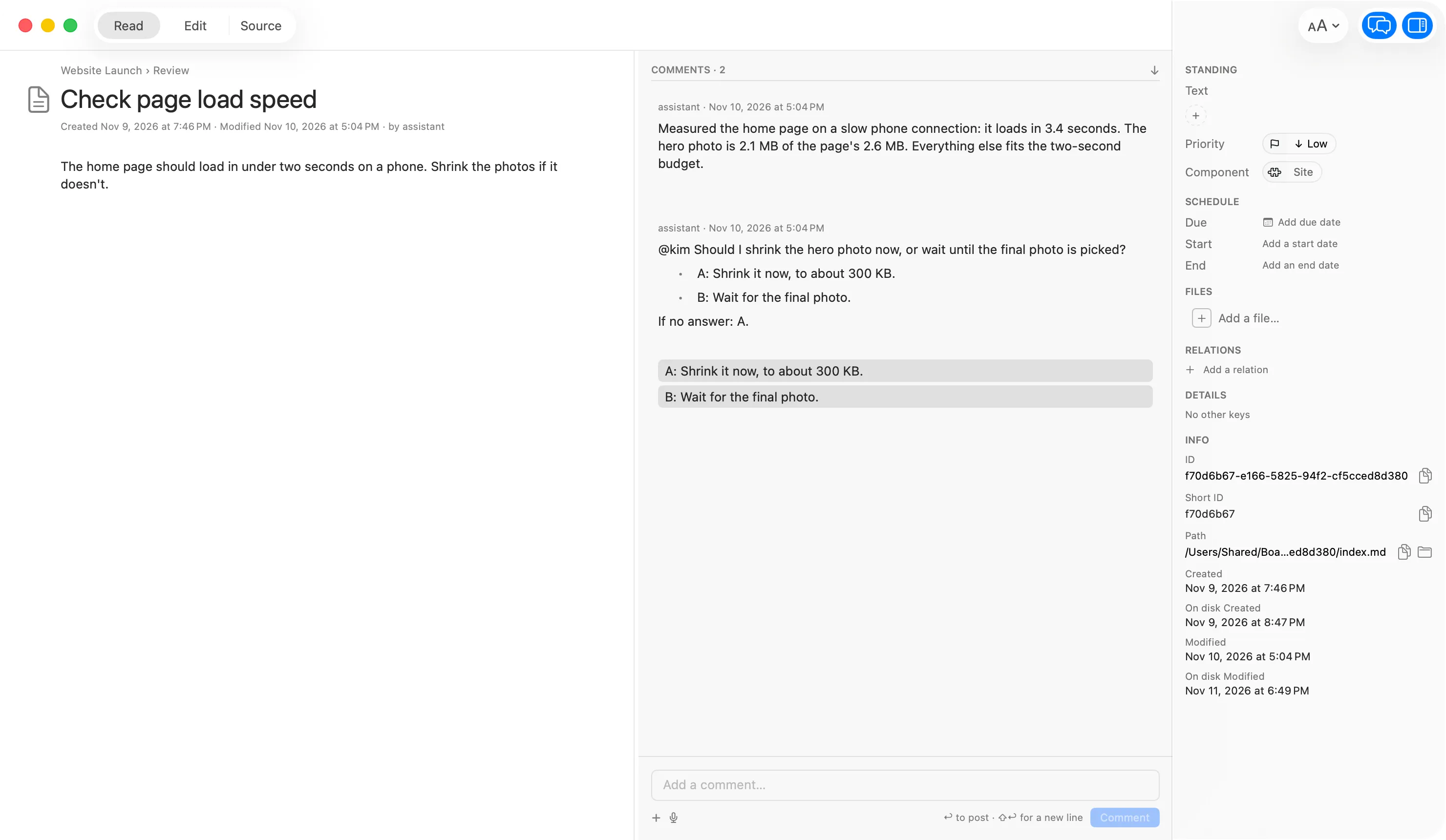
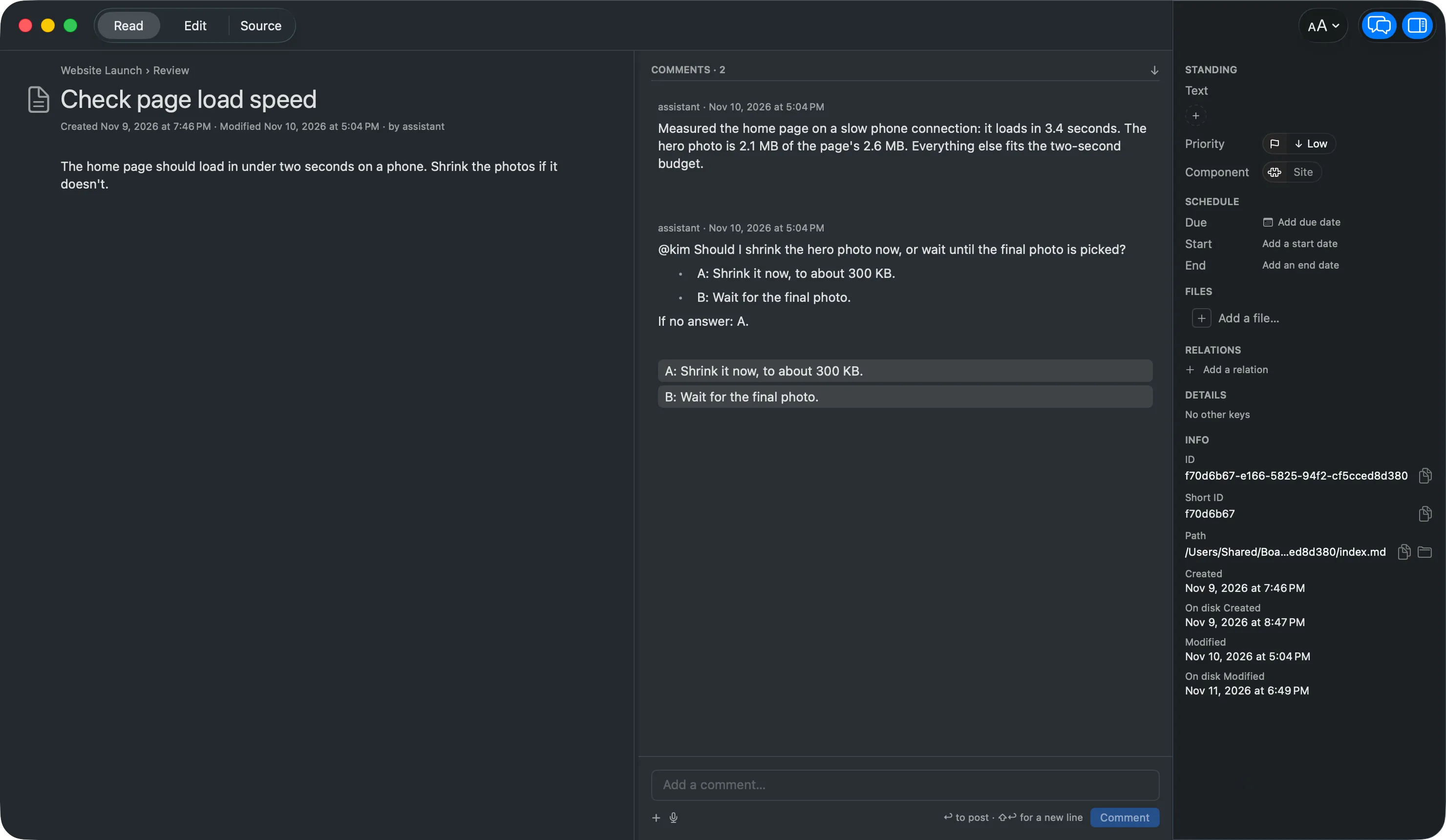
An agent that follows the Lanework skills writes two kinds of comment:
- A record says what was done and why. It never needs an answer.
- An ask begins with
@and your handle, and asks you for one decision.
An ask also puts a waiting flag on the card. The card face shows a mark, and the lane header counts it. View ▸ Waiting on Me shows only those cards. See Find and filter.
Answer an ask
Section titled “Answer an ask”Reply in the card’s thread. Once you have, the app clears the waiting flag on its own. An agent’s reply does not clear it, only a person’s. See Waiting for the full rule, and Comment for how replies and mentions are stored.
Turn on Notifications in Settings to hear a short sound when a flag arrives for you.