Sharing and export
Get a board or a card out of Lanework: as a document, on paper, as a copy, as a template, or driven from the Shortcuts app. A board is a folder of plain files, so none of these is needed to keep your data. They are for handing it to someone else. See Folder layout and tools for what is on disk.
Export a board or a card
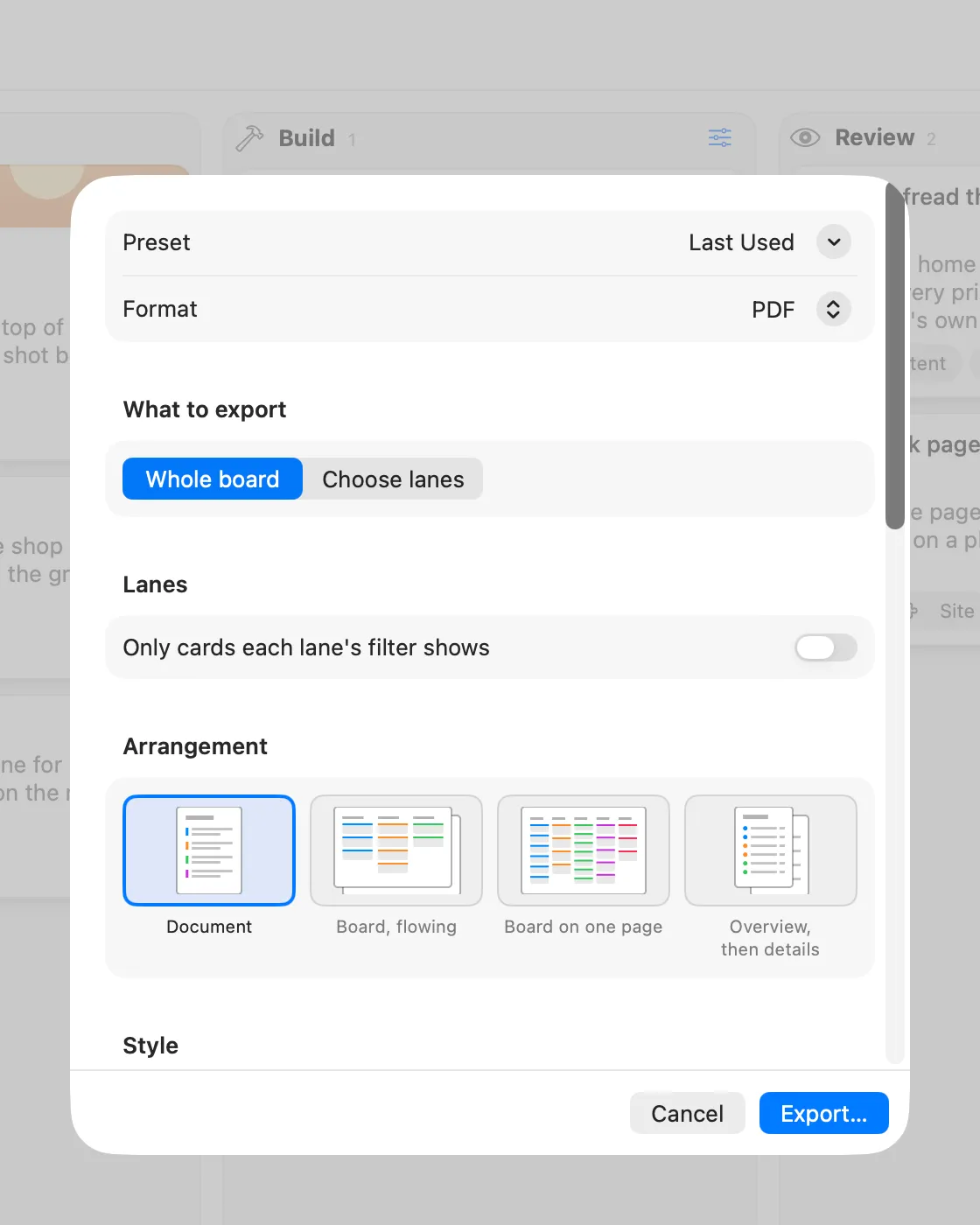
Section titled “Export a board or a card”File ▸ Export… (⇧⌘E) writes a document you can read outside Lanework. With a board window in front it exports the board. With a card window in front it exports that card.
- Choose File ▸ Export….
- Pick a preset from the top popup, or start from Last Used.
- Pick a Format.
- Adjust the options. The sheet shows only the options the chosen format uses.
- Choose Export… and pick where to save.
The formats are:
| Format | What you get |
|---|---|
| Single Markdown | One Markdown file holding the whole selection. |
| Obsidian Vault | A folder of notes, optionally with a Canvas of the board. |
| HTML | A web page. Lanework links to cards in it become in-page links. |
| Pages laid out for reading or printing. | |
| CSV | A spreadsheet table, one row per card. |
Choose what goes in
Section titled “Choose what goes in”The option groups, where the format offers them:
| Group | Choices |
|---|---|
| What to export | The scope: what is exported. The choices depend on whether you started from a board or a card. Called “What to print” when printing. |
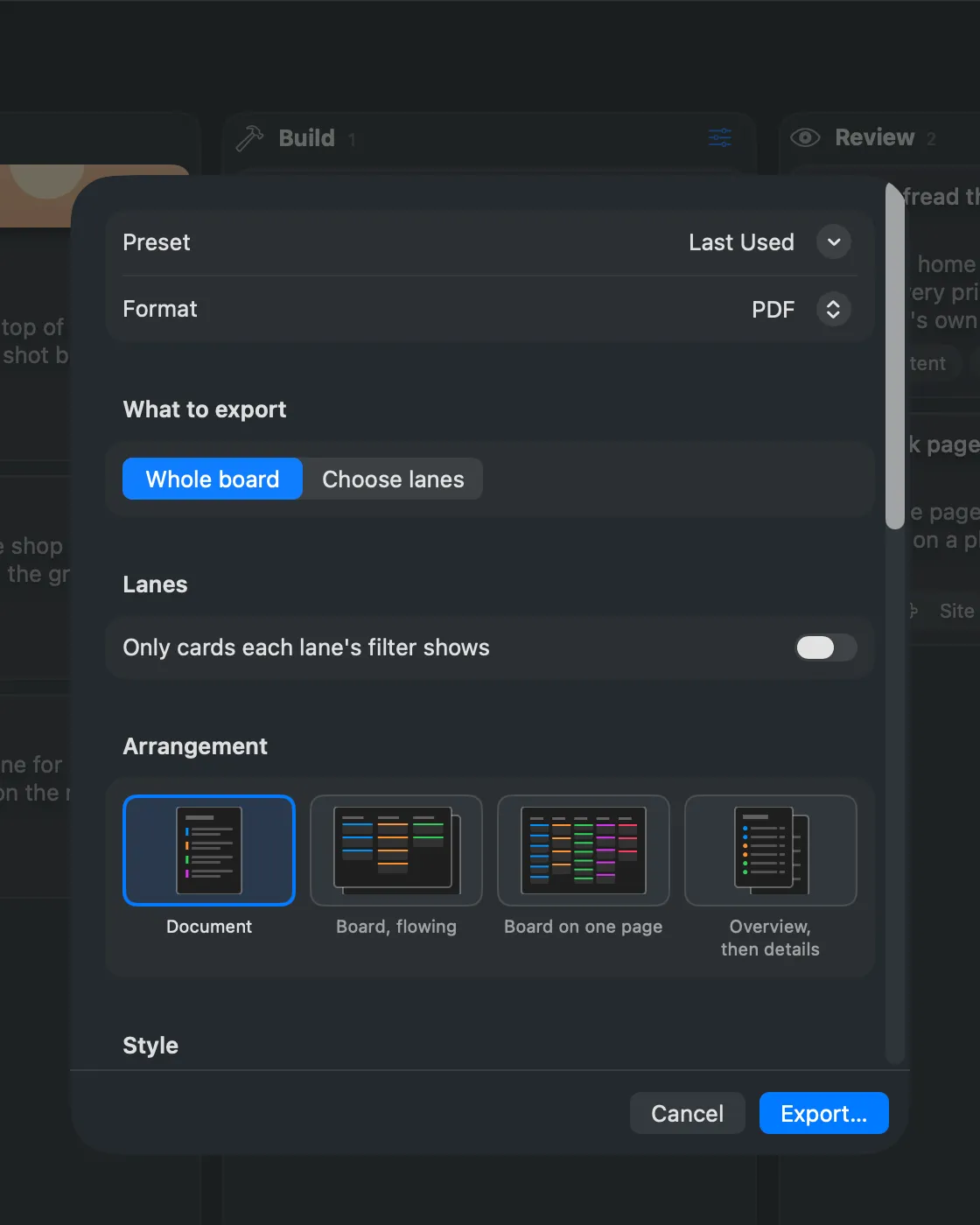
| Arrangement | Tiles for how pages are laid out (PDF and HTML): Document, Board, flowing, Board on one page, Overview, then details. |
| Lanes | A switch per lane, and “Only cards each lane’s filter shows”. |
| Card parts | Title, Icon, Labels, Body, Dates, Authors, Other fields, and each label kind. |
| Comments | None, All, or Last with a count. Oldest first or Newest first. |
| Attachments | None, List by name, Show images inline, or Copy files out. |
| Style | Colour, or Black and white. |
| Pages | New page at Nowhere, Each lane or Each card; a Font size stepper. Header: Board title, Date. Footer: Page numbers, Custom footer line. |
| Obsidian | Board note only, and Add a Canvas. |
| Show empty lanes | Include lanes that have no cards. |
Your last choices are remembered as Last Used. Presets save a set of choices under a name for next time.
Links in HTML
Section titled “Links in HTML”A short Lanework link in a card or comment, such as one made by Copy As ▸ Lanework Link, becomes a working in-page link in an HTML export when it names exactly one exported card. A link that matches no exported card, or several, stays a lanework:// link. See lanework:// links for how the links are written.
File ▸ Print… (⌘P) prints the board in front, or the card when a card window is in front. The print dialog has a Lanework options pane with the same controls the PDF export sheet draws: a preset menu, then What to print, Lanes, Arrangement, Style and the rest. The pane hides What to print in a card window. When the pane is collapsed, the dialog summarizes it in five lines: Preset, Prints, Arrangement, Style and Includes. With no board or card window in front, Print… has nothing to print.
Share a board
Section titled “Share a board”File ▸ Share… sends a zipped copy of the board through the macOS share sheet, for Mail, Messages, AirDrop and the rest.
The copy is the board as it stands, with its attachments, comments and trash. Any .git folder is left out. A banner shows progress while it is prepared, and has Cancel.
Duplicate a board
Section titled “Duplicate a board”File ▸ Duplicate (⇧⌘S) makes a copy of the whole board, never of a selection, and opens it in its own window. The original stays open.
The copy is saved beside the original, with “copy” in its name. If macOS will not let Lanework write there, a save panel asks where to put it instead. Cancelling the panel, or Cancel on the progress banner, leaves nothing behind.
Save a board as a template
Section titled “Save a board as a template”File ▸ Save as Template… keeps the board’s lanes and cards as a template you can start new boards from.
- Choose File ▸ Save as Template….
- Pick a name and place. The file ends in the template type, which the panel adds for you.
- Choose Save.
A template keeps the board’s lanes and cards, with their titles and bodies. It leaves out all comments and all attachments, and nothing warns you. A board made from it starts with no threads and no files. It also leaves out the board’s .git folder and its trash. The template then appears under Recent in the New Board gallery. To use it, choose File ▸ New Board… (⌥⌘N) and pick it, or use Choose Template File… to point at one somewhere else. See First board for the gallery.
Shortcuts actions
Section titled “Shortcuts actions”Lanework adds actions to the Shortcuts app, so a shortcut can read and change your boards without opening a window. A board must have been opened in Lanework at least once.
| Action | What it does |
|---|---|
| Create Card | Files a new card in a lane: board, lane, title, body, labels, due date, priority. |
| Add Comment | Posts a comment on a card. |
| Move Card | Moves a card to another lane on the same board. Leaves a move receipt if the board has Move receipts on and the card changes lane. |
| Find Cards | Finds cards on a board, narrowed by lane, label, due date or priority. |
| Open Board | Brings Lanework forward showing a board. |
| Open Card | Brings Lanework forward showing a card in its own window. |
Create Card refuses a lane locked for content, and Add Comment refuses a card in a lane locked for comments. Move Card works into and out of a locked lane. See Lanes for locking. Create Card, Add Comment and Move Card also take an Author Name. Whatever you put there is shown as the author. Left blank, it is “shortcuts”, so a comment from a shortcut is never mistaken for one from you. Siri and Spotlight also know phrases such as “Create a Lanework card” and “Find Lanework cards”.
See also
Section titled “See also”- Folder layout and tools: how a board is laid out, and keeping one in git.
- Board: the board’s own file.