Your first board
This page walks you from launching Lanework to a board on screen. For what a board is, see Getting started. The file layout is in Folder layout and tools.
The Welcome window
Section titled “The Welcome window”When Lanework opens with no board, it shows the Welcome to Lanework window. It has three buttons on the left and your recent boards on the right.
- New Board… opens the New Board window, where you pick a template.
- Open Board… opens a board that is already on disk.
- Add to Your Agent… shows how to connect an AI agent to your boards.
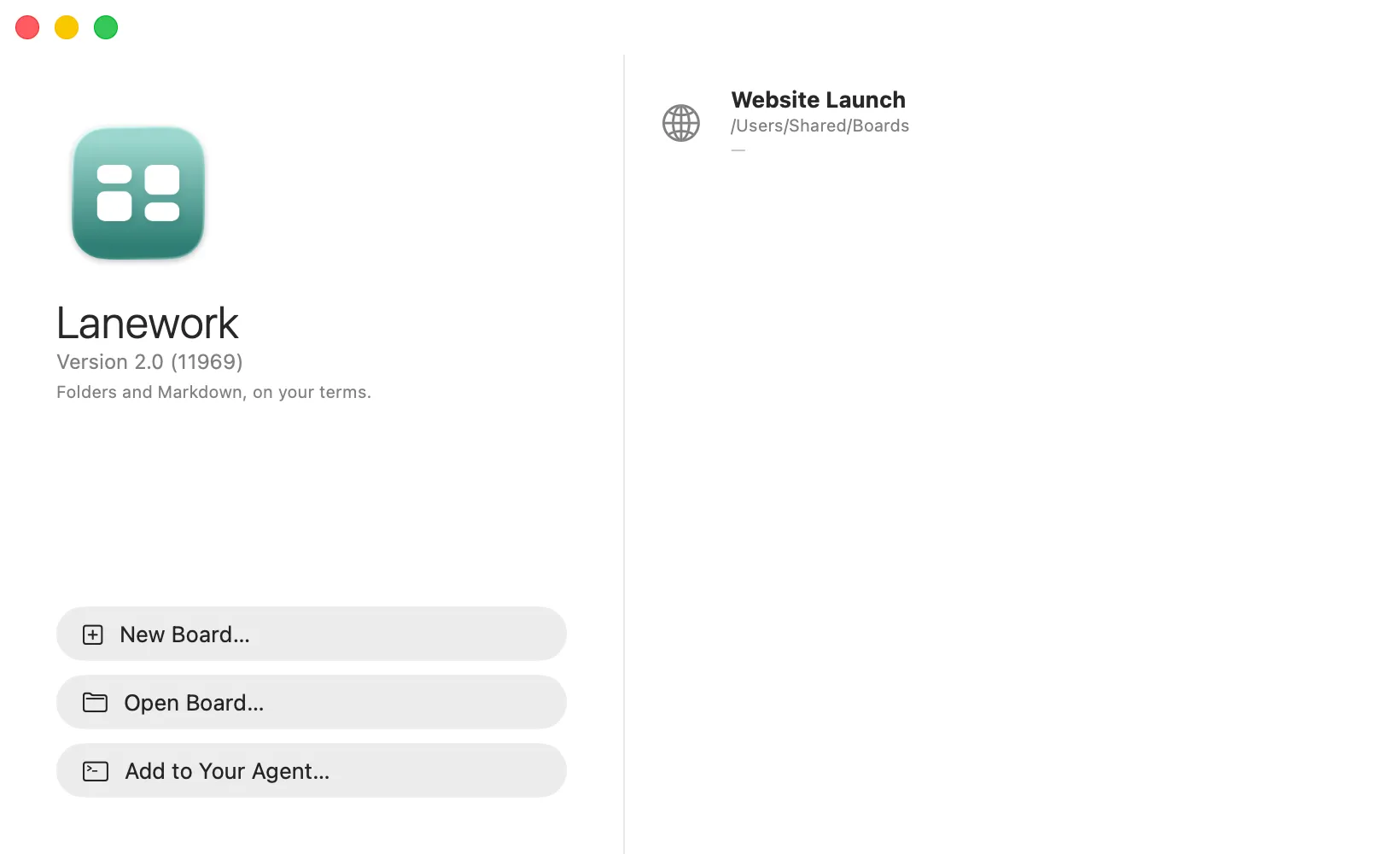
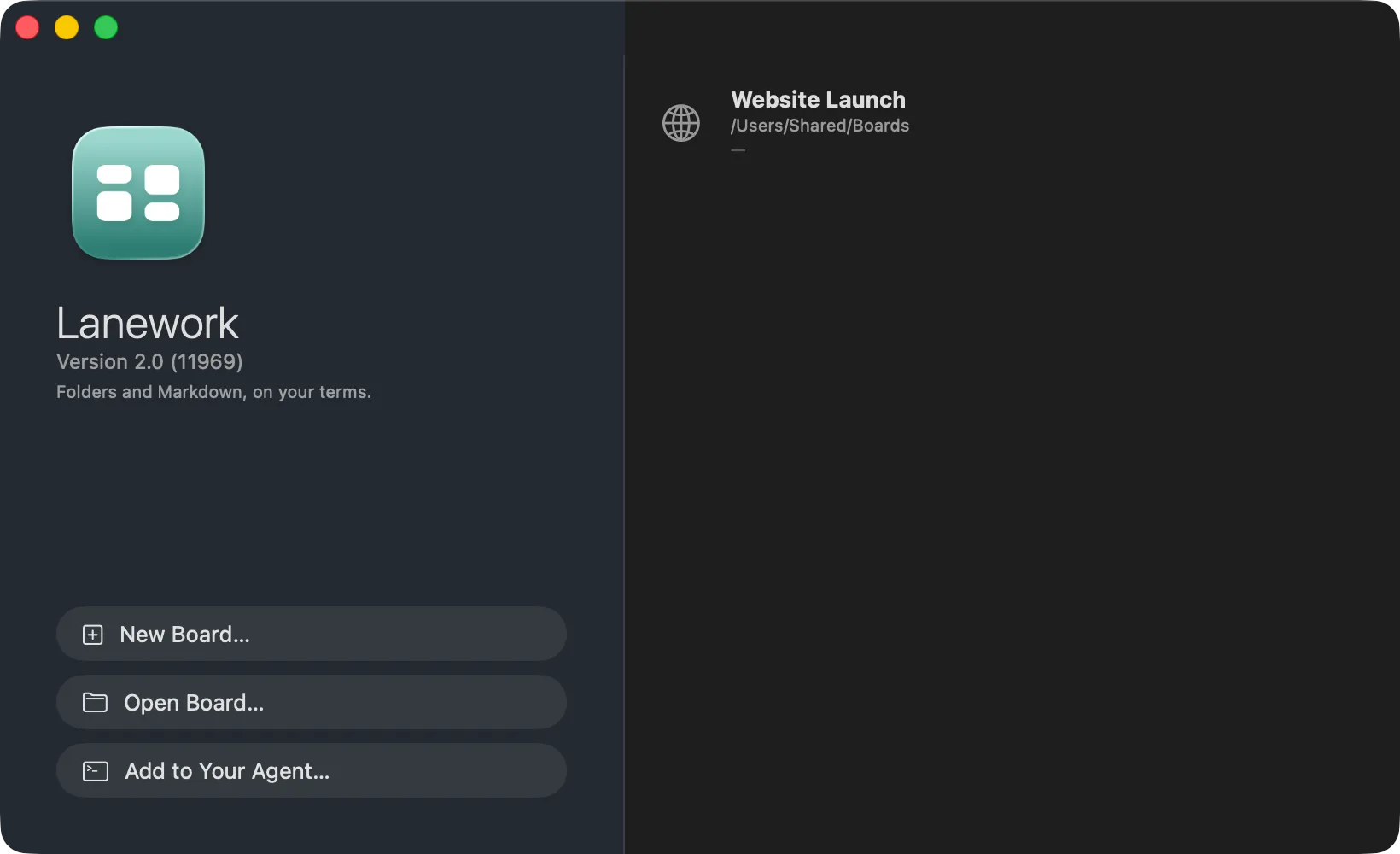
You can bring the window back any time from the Window menu with Welcome to Lanework.
Create a board from a template
Section titled “Create a board from a template”- Choose New Board… on the Welcome window, or File ▸ New Board… (⌥⌘N).
- In the Choose a Template window, click a template. The line under the grid describes it and says where it came from: Bundled with Lanework, From the Gallery or Your template.
- Click Choose, or double-click the template.
- Pick a name and a folder in the save sheet, then click Create.
The new board opens in its own window. Every template is an ordinary board, so you can change its lanes and cards straight away.
The header of the window says when the Gallery was last updated. Click Refresh to fetch the latest templates, or Retry if the last fetch failed.
Use a template file
Section titled “Use a template file”If someone sent you a template file, click Choose Template File… and pick it. It is added to the Recent section at the bottom of the grid and selected. To drop a template from that section, right-click it and choose Remove from Recent.
To make your own template from a board, see Boards.
Open a board that exists
Section titled “Open a board that exists”You can open a board in any of these ways:
- Click Open Board… on the Welcome window.
- Choose File ▸ Open… (⌘O).
- Double-click a board in the Recent list on the Welcome window.
A board is a folder whose name ends in .lanework. In the open panel, choose that folder.
Open Recent
Section titled “Open Recent”File ▸ Open Recent lists the boards you opened lately. Choose one to open it. Clear Menu empties the list.
On the Welcome window, select a recent board and press Return to open it. Right-click a row for more:
- Open
- Reveal in Finder
- Grant Access…, which appears when macOS has not given Lanework permission to read that folder. Choose the board’s folder again to grant it.
- Forget, which removes the row from the list. It does not touch the board.
A board that has been moved, deleted or sits on a volume that is not mounted shows as unavailable. Boards that failed to open at launch are listed under Couldn’t Open with the reason. Click Clear to dismiss them.