Comments
Every card has a thread of comments. People and agents use it to discuss the work and to ask each other questions. A comment is a file in the card’s folder, described in Comment.
Read the thread
Section titled “Read the thread”Open a card and show the comments pane with View ▸ Show Comments (⌥⌘M). Comments run in the order they were written. Each shows who wrote it and when.
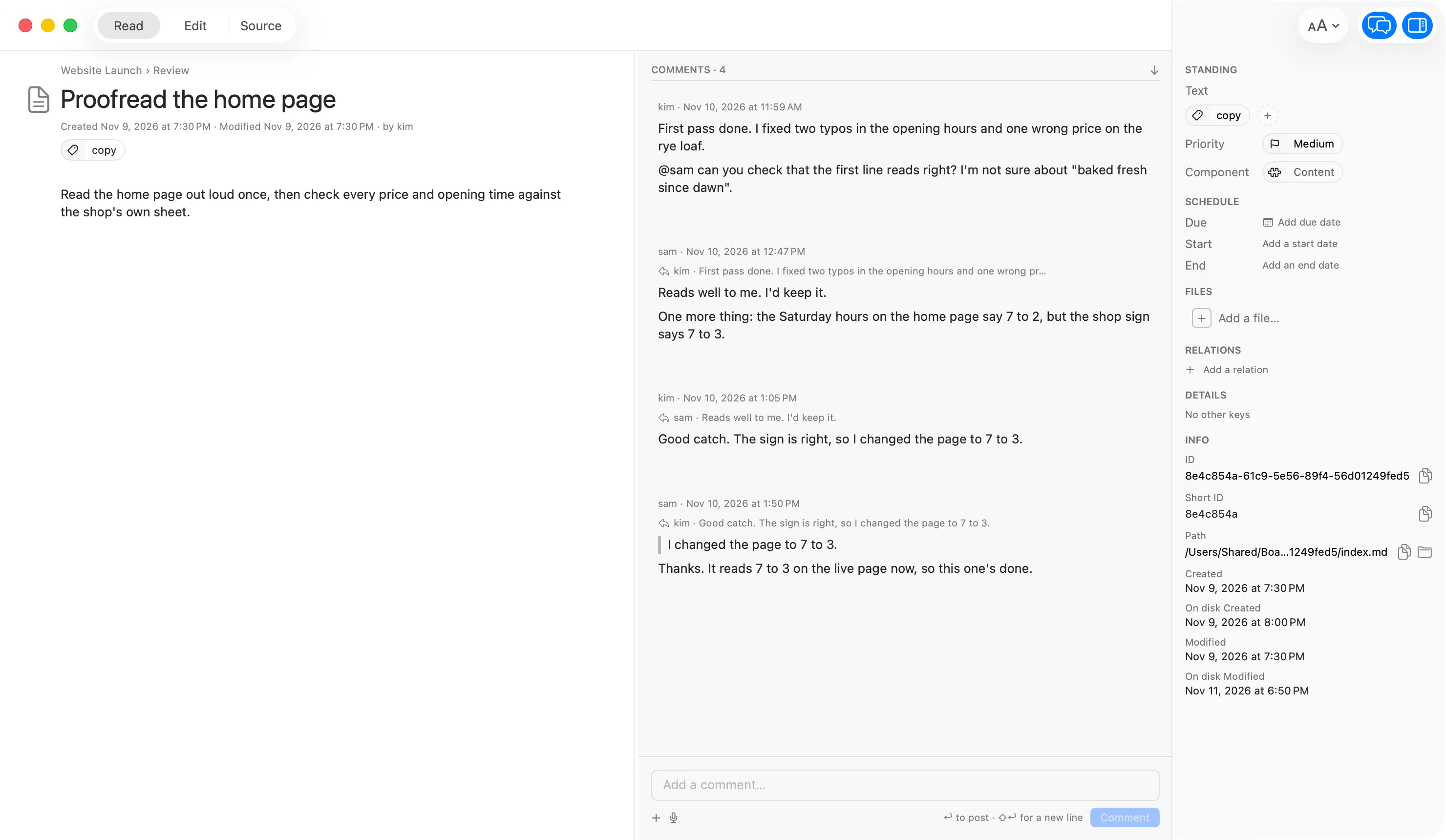
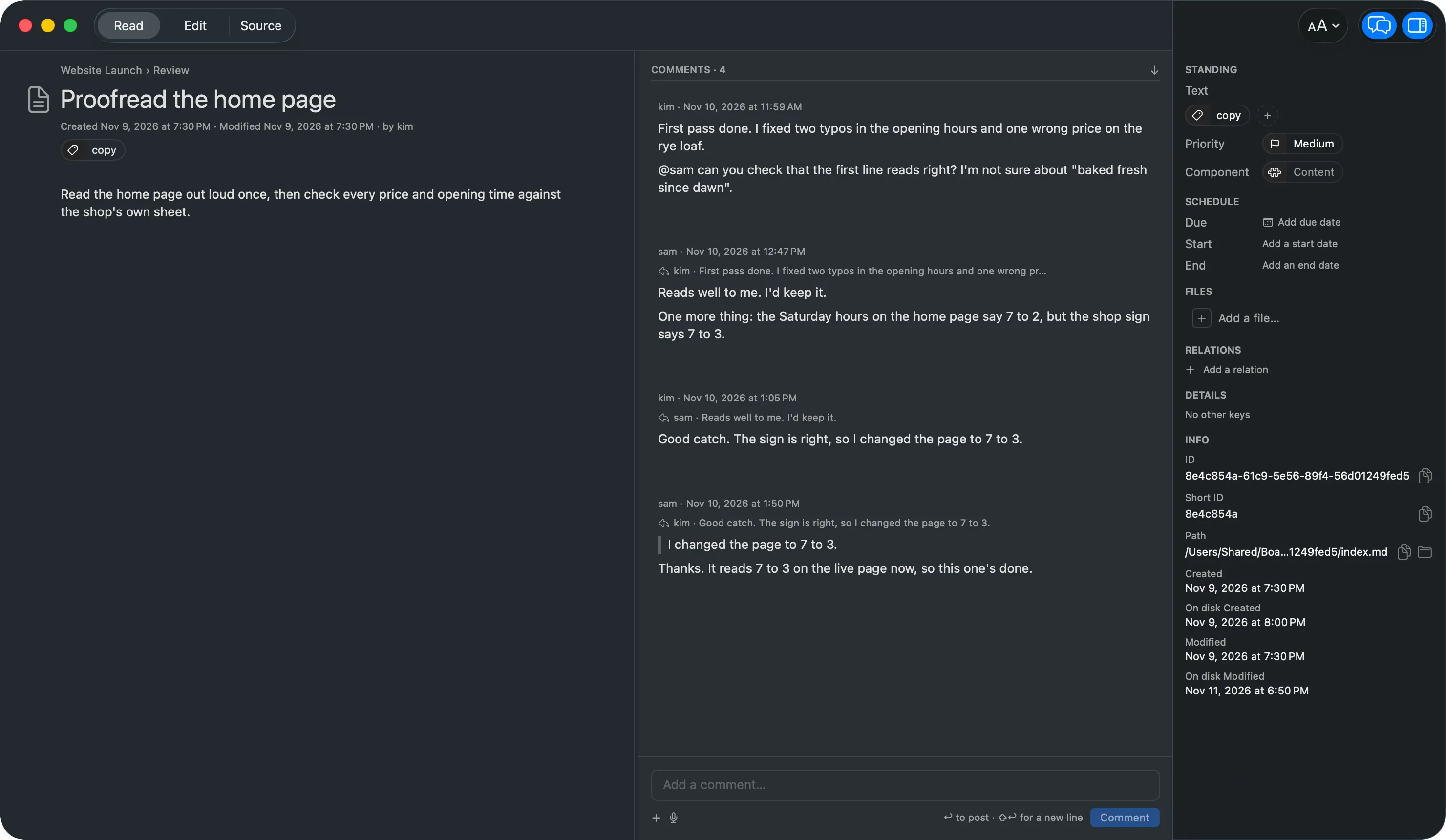
On the board, a card’s face shows its comment count and how long ago the latest comment came in. To read a thread without opening the card, use Quick View: select the card, press Space, then ⌘2. See Cards.
See where a card was moved
Section titled “See where a card was moved”If the board has Move receipts switched on in Board Settings, moving a card to another lane adds one quiet line to its thread, such as “Moved from Proposed to Approved by kim”, with the time after it. A receipt has no avatar and no Reply, Edit or reactions. You can delete it from its right-click menu. Undoing the move removes the line. The switch is described in Settings, and the file form in Comment.
Write a comment
Section titled “Write a comment”- Click the box at the bottom of the pane that reads Add a comment….
- Type your comment. WRITE and PREVIEW switch between the text and how it will look.
- Click Comment, or press Return.
The box tells you which keys post. By default Return posts and ⇧Return starts a new line. ⌘↩ posts either way, and ⌥↩ always starts a new line.
To swap Return and ⇧Return, turn off Return posts a comment in Settings.
You can also dictate with the Dictate button, and drop or paste images and files into the box.
Reply to or quote a comment
Section titled “Reply to or quote a comment”Hover over a comment to see its buttons, or right-click it:
- Reply starts a comment that answers it. The new comment shows a “Replying to” line that jumps back to the original. Click Stop replying to cancel.
- Quote starts a comment that quotes it.
The More menu, and the right-click menu, also have Edit, Copy Lanework Link, Reveal in Finder and Delete. Hold Option for Copy Full Lanework Link.
To fix a comment, choose Edit, change the text and click Save, or Cancel to drop the change.
Mention someone
Section titled “Mention someone”Type @ in the comment box, in a card body or while editing a comment. A menu offers the handles known on this board, with yours first. Pick one, or keep typing to narrow the list.
Your own handle is set in Settings under Handle. It decides what @you means on this Mac. The rules for mentions are in Comment.
Find in a thread
Section titled “Find in a thread”Click in the thread and press ⌘F (Edit ▸ Find). A find bar searches the whole thread. It shows how many matches there are, for example “2 of 5”. Use Find Previous and Find Next to step through them, and Done to close the bar.
If the box or a body is focused, ⌘F searches that text instead.
Waiting flags and Waiting on Me
Section titled “Waiting flags and Waiting on Me”An agent that needs your answer asks in a comment and flags the card as waiting on you. The flag is described in Waiting.
When a card is waiting on you:
- Its face wears a mark.
- Its lane’s header counts it.
- You hear a short sound, unless you turned Notifications off in Settings.
The app clears the flag once a person replies on the card. An agent’s reply does not clear it.
If the ask offers options, they appear as buttons under the comment. Click one to answer.
Show only what is waiting
Section titled “Show only what is waiting”Choose View ▸ Waiting on Me to hide every card that is not waiting on you. It works together with search and lane filters, and it resets when you quit.