Settings
Lanework has two places for settings. The Settings window holds what belongs to you and this Mac. Board Settings holds what belongs to one board. Where the same choice exists in both, the board’s own value wins. For the files behind them, see Configuration.
The Settings window
Section titled “The Settings window”Choose Lanework ▸ Settings… (⌘,). The window is one scrolling page in three sections, then Colors and Notes.
Every row shows whether you have changed it (Set) or it is still on its default (Default), with a button to put it back. A line under each row says when a change takes effect. Most take effect at once.
| Setting | What it does |
|---|---|
| Handle | What @you means on this Mac. It matches mentions of you, fills the @ typeahead, and decides which waiting flags are yours. The default is your Mac user name. |
Boards
Section titled “Boards”These are defaults for every board that does not set its own. Under each row, the window lists the boards that do override it.
| Setting | What it does |
|---|---|
| Due soon | How many days ahead a due date counts as due soon and marks the card face. 0 to 365. |
| Activity log | The level a board’s activity log writes at (Off, Error, Warning, Info or Debug) and how many days of log files to keep. Boards in iCloud Drive never log. |
| Image sizes | The square sizes the image picker offers when you type , Due soon, Short ID, Move receipts. |
| Window | Show trash and Show status bar, the same as View ▸ Show Trash and View ▸ Show Status Bar. |
| Images | Image sizes, including “Full size only”. |
| Activity Log | Log level and Log retention. Turned off for a board kept in iCloud Drive. |
| Label Kinds | The board’s label kinds. See below. |
| Description | The board’s description text. Edit, then Done. Open in Editor opens it in Lanework’s editor. |
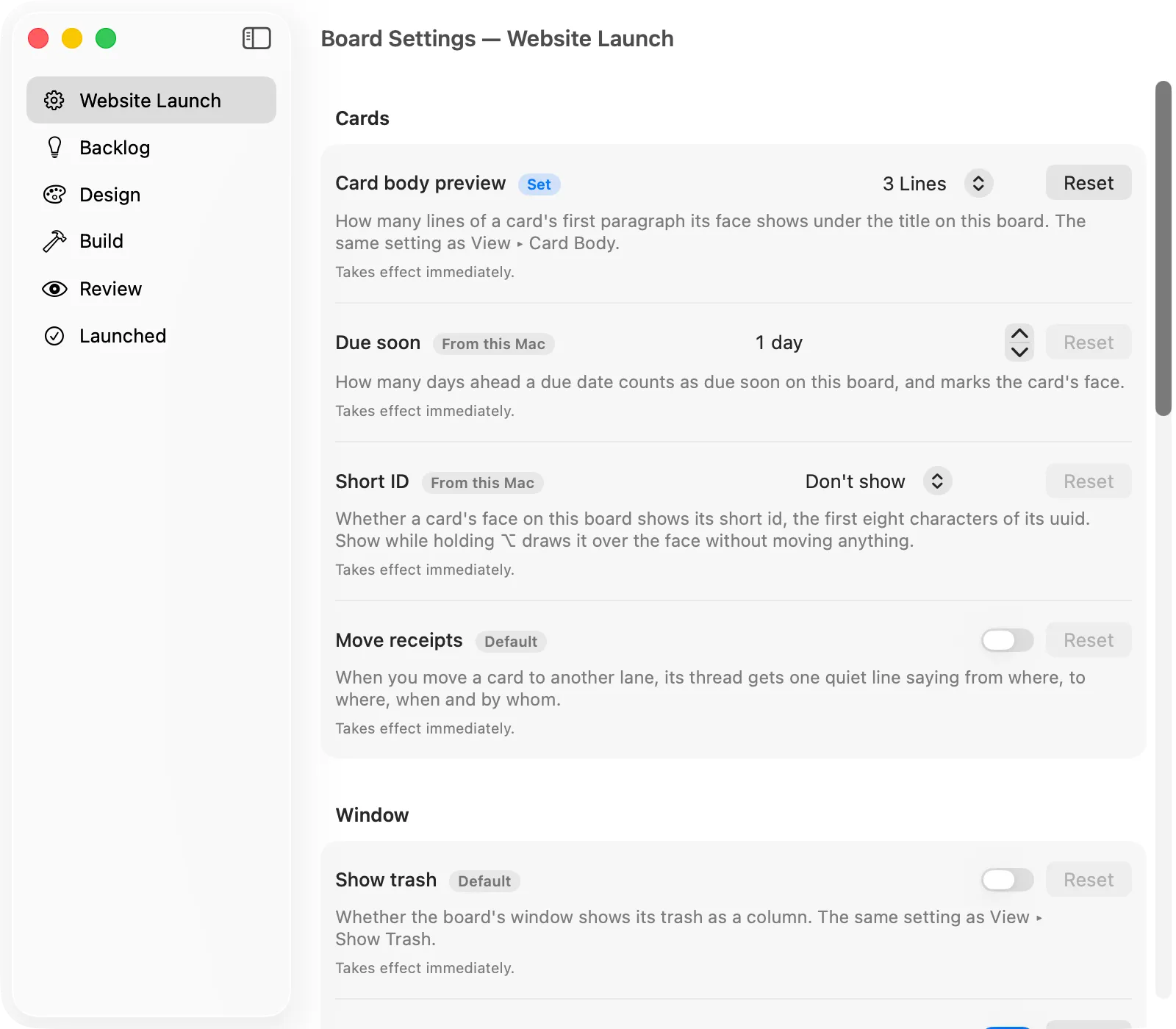
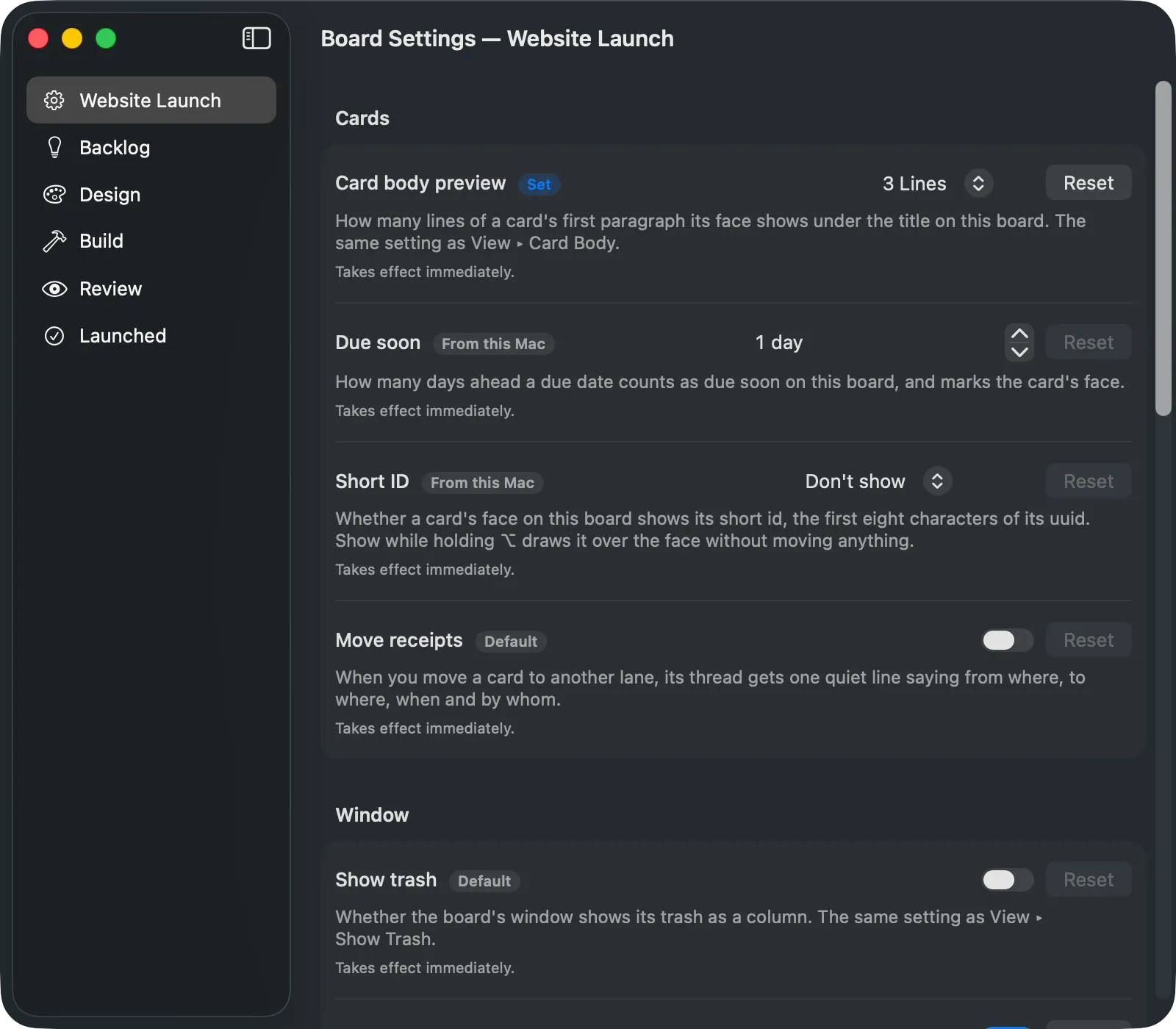
The window also has a page for each lane. Lane Settings… in a lane’s menu opens it. See Lanes.
Turn on move receipts
Section titled “Turn on move receipts”Move receipts adds one quiet line to a card’s comments when you move the card to another lane on the same board. It says from where, to where, when and by whom. The “by” part is left out if your Mac account has no full name. Moving a card across boards, copying it, sending it to the trash and restoring it leave no line. Undoing the move removes the line. A move made by the Shortcuts Move Card action leaves one too. It is off until you turn it on.
- Choose Board ▸ Board Settings….
- In the Cards section, switch on Move receipts.
The setting takes effect at once and belongs to this board. A receipt never clears a waiting flag. For how a receipt is stored, see Move receipts, and for the setting’s key, Move receipts.
Edit label kinds
Section titled “Edit label kinds”The Label Kinds section is where a board’s label kinds are made and changed. See Labels for what kinds are for.
- Select a kind in the list, or choose New Kind to add one.
- Set its Name, Icon and Colour. The Type is made from the name and is fixed once saved.
- Choose whether Values is Any value or A fixed list. For a fixed list, add values and drag them into rank order.
- Choose One per card if a card can carry only one value of the kind.
- Choose Save, or Cancel to drop the draft.
Saving changes only the board’s definitions. Cards keep the labels they already carry, and Save cannot be undone. Remove Kind… and removing a value ask first, and say how many cards still carry it. The built-in text kind can be renamed and recoloured but never removed. Reset to Built In puts it back.
For the keys these settings write, see Labels in depth and Configuration.
Appearance
Section titled “Appearance”Choose View ▸ Appearance, or the Appearance button in the toolbar, then Auto, Light or Dark. Auto follows macOS. The choice applies to every Lanework window.