Find and filter
Three tools narrow a busy board: the Search field, which looks across every card; Filter and Group By, which shape one lane; and Waiting on Me, which shows only the cards waiting for you. For the rules behind grouping and filtering, see Grouping and filtering.
Search the board
Section titled “Search the board”- Click Search in the toolbar, or choose Edit ▸ Find (⌘F).
- Type. Cards that do not match disappear from their lanes as you type.
A card matches when your text appears in its title, its body or its comments. Capital letters and accents do not matter. Attachment file names are not searched.
While the results settle after you stop typing, a small spinner turns at the right edge of the Search field. Lanes never disappear during a search. A lane with no matches stays in place, empty, and its count badge reads 0. Otherwise the badge counts only the cards that match.
Clear a search
Section titled “Clear a search”Press Escape. Each press steps out one layer: it first closes an open editor, then Quick View, then clears the search, then clears the selection. With the Search field focused, one press clears its text and a second hands the keyboard back to the board.
Inside a card window, ⌘F searches that card instead: the body text, or the comment thread. See Comments for finding text in a thread.
Filter a lane
Section titled “Filter a lane”A lane filter shows only the recently changed cards in one lane.
- Right-click the lane header.
- Choose Filter.
- Pick 1 Day, 2 Days, 3 Days or 1 Week.
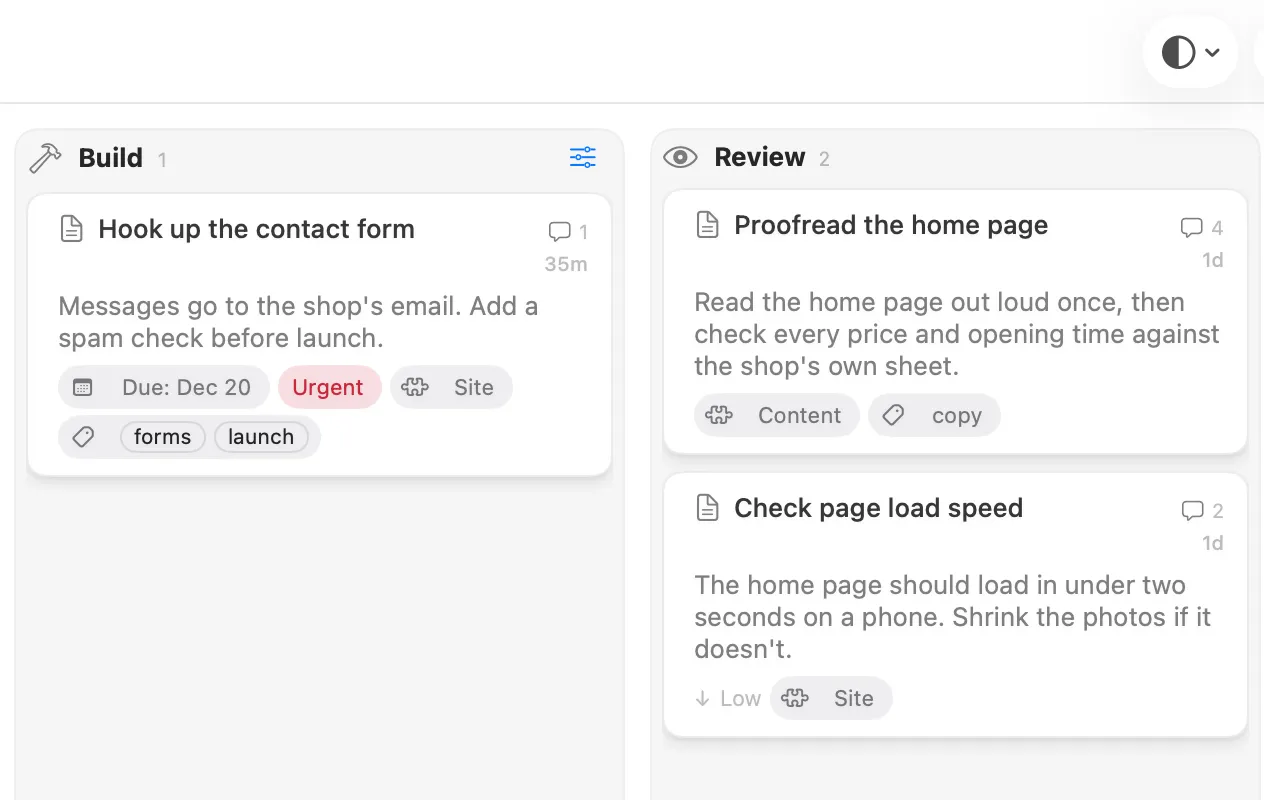
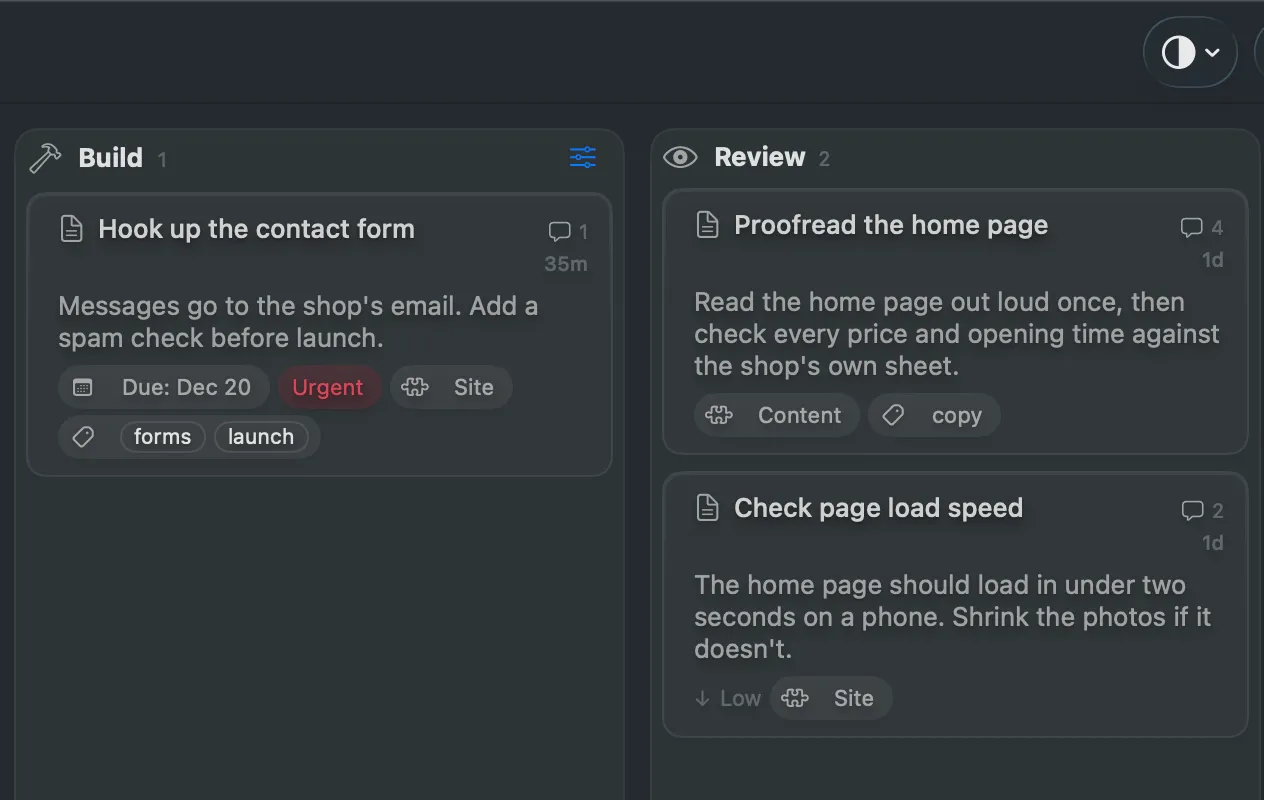
The lane then shows cards modified within that many calendar days, counting today. Choose Clear in the same menu to show every card again. The filter belongs to the lane and is saved with the board, so it is still there the next time you open it. While a lane is filtered, its Lane Options button in the header is tinted with your accent colour, so you can tell at a glance.
Lane Settings… (the fourth row of the right-click menu, and the last row of the Lane Options menu) shows the same lane in the Board Settings window. Filters with more conditions, such as by label or due date, are written in the board’s files. See Grouping and filtering.
Group a lane
Section titled “Group a lane”Group By sorts a lane’s cards into sections under small headings.
- Right-click the lane header.
- Choose Group By.
- Pick None, Modified, Created or Due, or a label kind that allows one value per card, such as Priority or Component.
Once a lane is grouped, a Direction choice appears below. Its wording follows what you group by: Priority reads Highest First or Lowest First, and Component reads A to Z or Z to A.
Choose None to go back to one list. The lane’s header menu also has Show As, which switches the lane between Cards and List.
Drag a card into a group
Section titled “Drag a card into a group”Dropping a card into a lane grouped by Priority, Component, Due or a label kind keeps the card’s own value. The card takes its place in the lane, but it keeps its own priority, component or due date. A lane grouped by Modified or Created never changes a card’s values.
To move the card into a group and take on that group’s value, hold ⇧ while you drag. Every group the lane could hold is shown, even the empty ones, and you drop the card into the one you want. While you drag over a grouped lane, a small chip on the group’s header says what the drop will do: “Keeps Priority” with ⇧ up, and “Sets Priority: High” with ⇧ down.
Sort a lane
Section titled “Sort a lane”The lane menu also has a Sort submenu, which reorders a lane’s cards by title, priority, due date, date created, date modified or component, or reverses their order, and Undo puts the order back. See Sort a lane’s cards.
Show only what is waiting on you
Section titled “Show only what is waiting on you”Choose View ▸ Waiting on Me to show only the cards whose waiting flag names you. Choose it again to see every card.
A waiting flag is how a person or an agent says a card is blocked on your reply. Your handle, set in Settings, decides which flags are yours. See Comments for how waiting flags are raised and cleared, and Waiting for how they are stored.