Attachments
An attachment is a file kept with a card: a screenshot, a PDF, a spec. This page covers adding files, setting a card’s hero image, and opening or previewing what a card holds. For where the files live on disk, see Attachment.
Add files to a card
Section titled “Add files to a card”There are two ways in. Both put a copy of the file with the card.
- Drop files on a card. Drag files from the Finder onto a card on the board, or onto an open card window. The card lights up and says what the drop will do.
- Use the menu. With a card window in front, choose File ▸ Add Attachment… (⇧⌘A), or use Add Attachment… in the card window’s toolbar. Pick one or more files, then choose Add.
In a card window, a card’s files are listed in the inspector’s Files section, which also has an Add a file… row. You can drop files anywhere in the window.
Paste an image
Section titled “Paste an image”A screenshot or a picture you copied from a web page can go straight into a card.
- Copy the picture.
- Select the card on the board.
- Right-click the card and choose Paste Image into Card.
The picture is added as an attachment named “Pasted Image”. PNG, JPEG, GIF, HEIC and WebP pictures are kept exactly as they are; other formats are saved as PNG.
Set the hero image
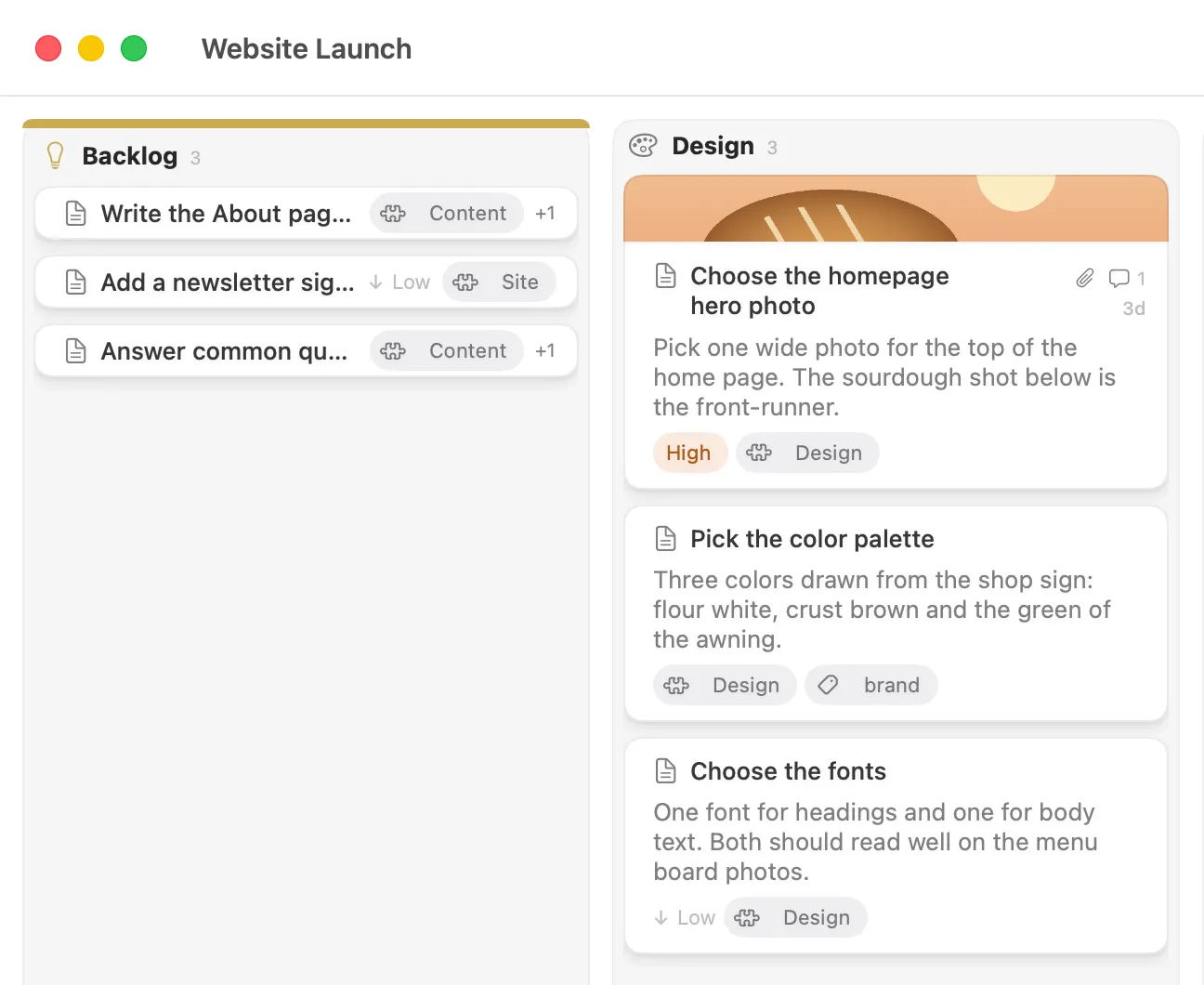
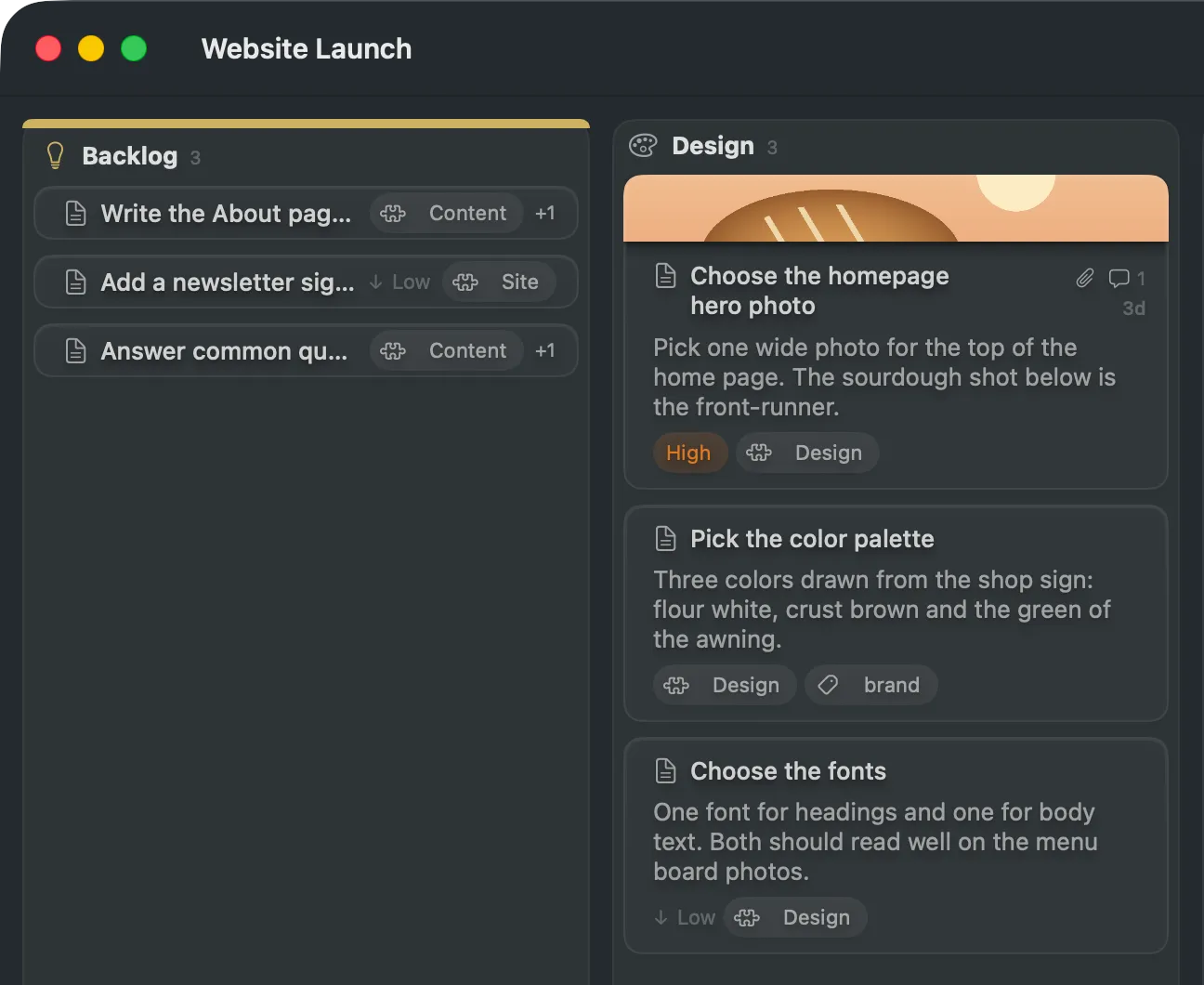
Section titled “Set the hero image”A card’s hero is the one picture shown across the top of its face on the board, and at the top of its window. A card has at most one.
Set a hero
Section titled “Set a hero”- Drop a picture on the top band of the card. The band says “Set as hero”, or “Replace hero” when the card already has one. Dropping lower on the card only attaches the file (“Add file”).
- Or use the attachment’s menu. In the card window’s Files section, right-click an image and choose Set as Hero. A new hero replaces the old one.
Only images can be a hero. The Set as Hero row does not appear for other files.
Remove the hero
Section titled “Remove the hero”Right-click the current hero in the Files section and choose Remove Hero. The attachment stays on the card. It just stops being the picture on the face.
Open, preview and reveal
Section titled “Open, preview and reveal”Right-click an attachment in the Files section for its menu.
| Menu item | What it does |
|---|---|
| Open | Opens the file in its default app. Double-click, or press Return, does the same. |
| Quick Look | Previews the file in a floating panel. Press Space, or choose File ▸ Quick Look. |
| Set as Hero | Makes the image the card’s hero. Shown for images that are not already the hero. |
| Remove Hero | Shown instead of Set as Hero on the current hero. |
| Insert Reference | Appears while you write a comment, and inserts a reference to the file. |
| Reveal in Finder | Shows the file in the Finder. Also under File ▸ Reveal in Finder. |
| Remove | Removes the attachment from the card. |
Quick Look and Reveal in Finder are also in the File menu. Neither has a keyboard shortcut. In the Files list, Space is the only key for Quick Look, and ⌫ removes the selected attachment.
See also
Section titled “See also”- Attachment: the folder each attachment lives in, and how to add one by hand.
- Card: the
herokey.