Labels
Labels sort and describe cards. Each label belongs to a kind, such as Priority or Type, and a board decides which kinds it offers. How labels are stored is in Labels in depth.
Label kinds
Section titled “Label kinds”A kind is a family of labels. A board can have kinds like these:
- Priority, with a fixed list: Urgent, High, Medium, Low.
- Component, where you type any value.
- Type, with a fixed list: Bug, Feature and so on.
Every kind is one of two shapes:
- A fixed list of values you pick from.
- Any value, where you type your own and the menu remembers the ones in use.
A kind can also allow One per card, so choosing a new value replaces the old one. Priority works this way, since a card has one priority.
Every board also has the built-in Text kind. It holds free labels with no kind of their own, and it cannot be removed.
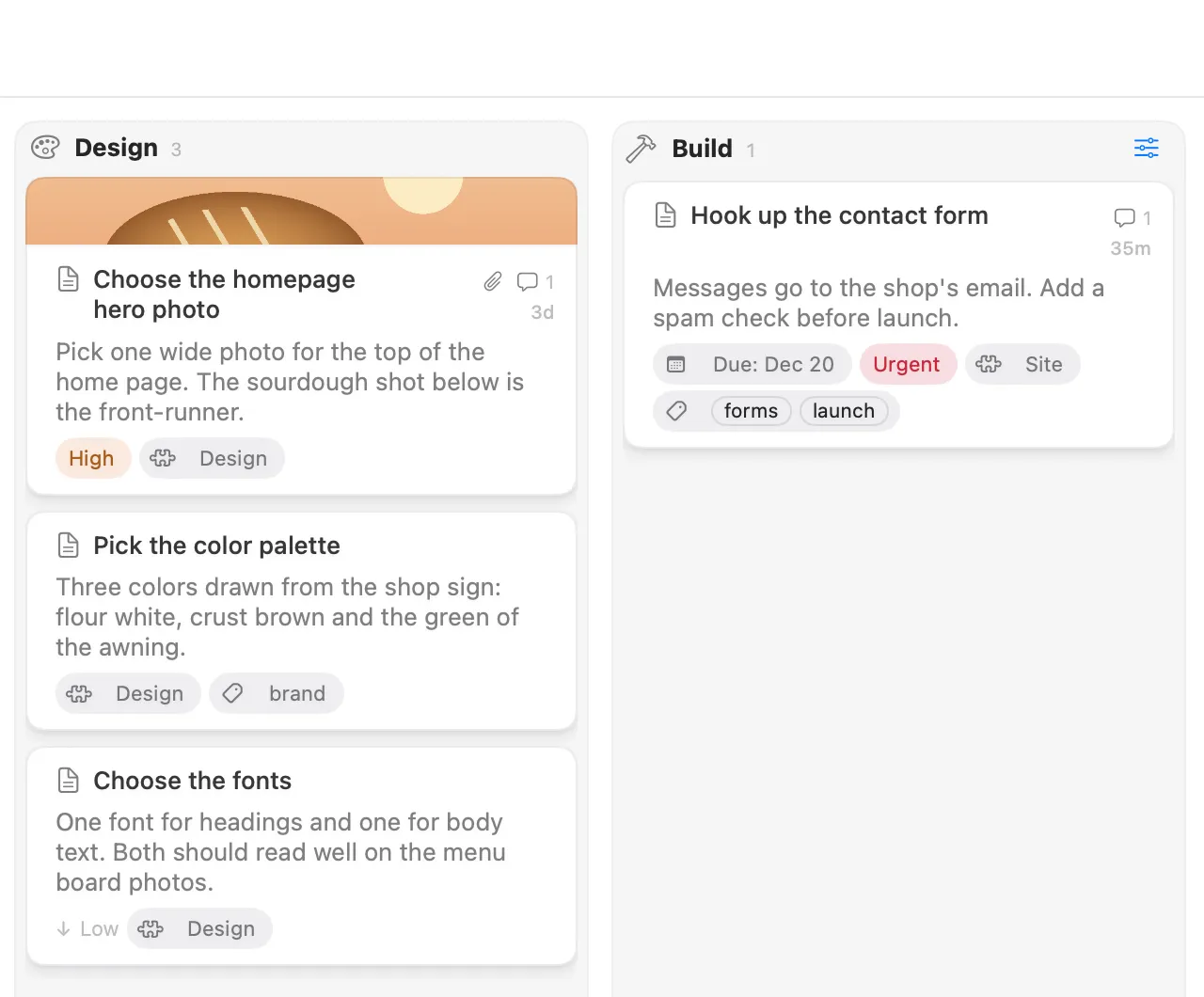
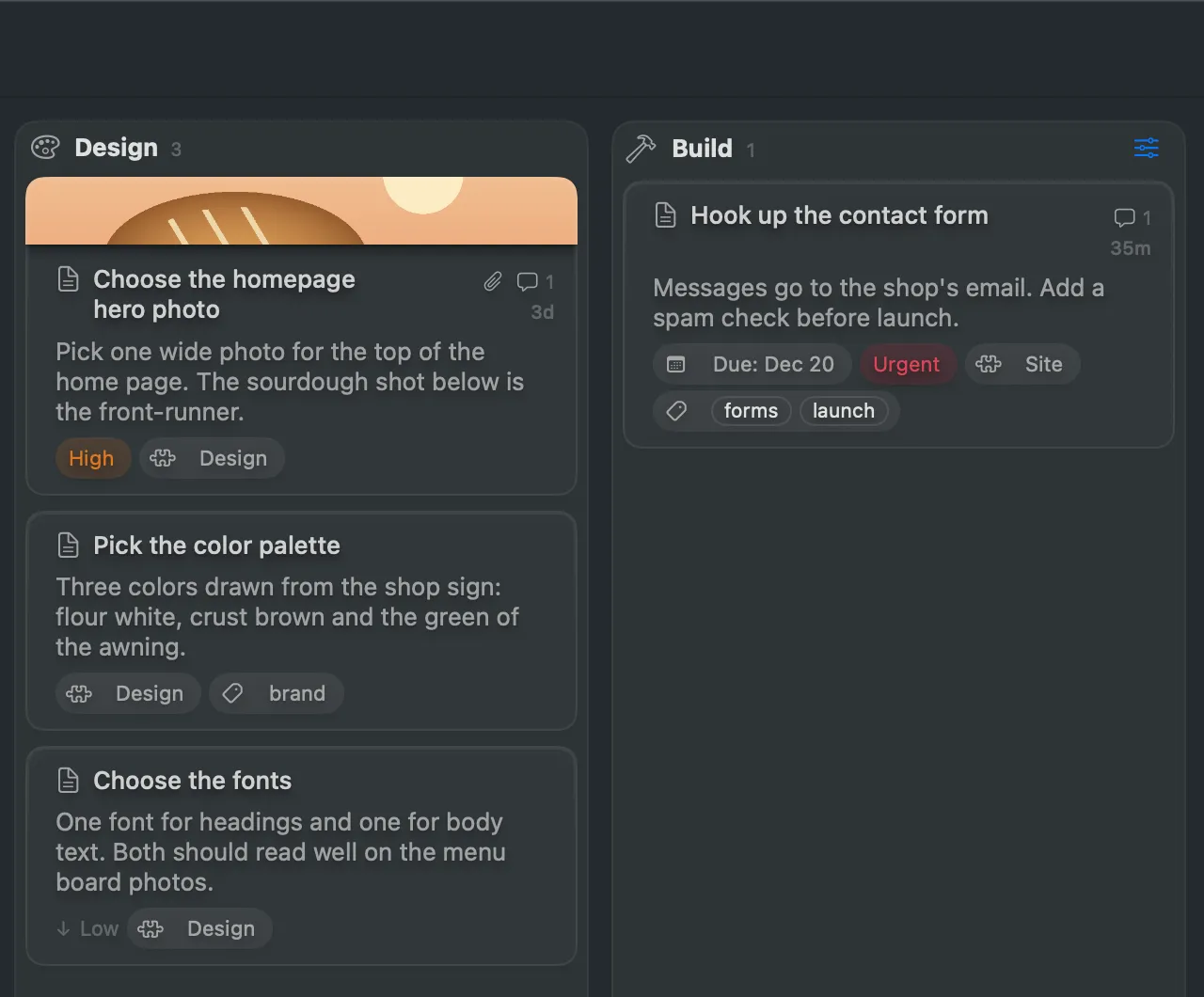
Labels show as chips on the card’s face, in each kind’s colour and icon.
Set a card’s labels
Section titled “Set a card’s labels”From the card menu
Section titled “From the card menu”- Right-click the card (or several cards).
- Choose Labels, then the kind.
- Pick a value. A tick shows the ones the card has.
For a kind that takes any value, choose More… to type a new one. To remove an any-value label, tick it again to untick it. A fixed-list kind also has Clear (or None, for a one-per-card kind), which removes all of the kind’s labels from the card.
Label Kinds… at the bottom of the submenu opens the board’s kinds for editing.
From the card window
Section titled “From the card window”- Open the card and show the inspector (⌥⌘I).
- Under Standing, find the kind’s row.
- A one-per-card row is a pop-up showing Set Priority or the current value. Other rows show chips with a plus to Add another.
Priority and component
Section titled “Priority and component”Priority and Component are ordinary kinds. Nothing about them is built into the app. A board shows them when it defines them. What the files say is in Priority and component.
Edit the kinds on a board
Section titled “Edit the kinds on a board”- Choose Board ▸ Board Settings….
- Scroll to Label Kinds.
- Select a kind to edit it, or click New Kind to add one.
For each kind you can set:
- Name, shown in menus.
- Type, made from the name and fixed once saved.
- Icon and Colour.
- Values, as Any value or A fixed list.
- One per card.
For a fixed list, type under New value and click Add Value. Drag values to reorder them, because a value’s place in the list is its rank. Each value can have its own colour. Use Remove Value to delete one.
Click Save to write your changes, or Cancel to drop them. Saving only changes the board’s palette. Cards keep the labels they already carry, and Save cannot be undone. If the board changed on disk while you were editing, Save asks before writing over it.
To remove a kind, select it and choose Remove Kind…, then confirm.
Set a label by dragging
Section titled “Set a label by dragging”In a lane grouped by a label kind such as Priority or Component, hold ⇧ while you drag a card and drop it on a group. The card takes that group’s value. Without ⇧, a drop keeps the card’s own labels. See Lanes.
Group by a label
Section titled “Group by a label”Any kind can section a lane. Choose Group By in the lane menu and pick the kind. See Lanes.