Boards
A board is one window. This page covers that window and everything you do to a board as a whole. The keys a board’s index.md can hold are in Board.
The board window
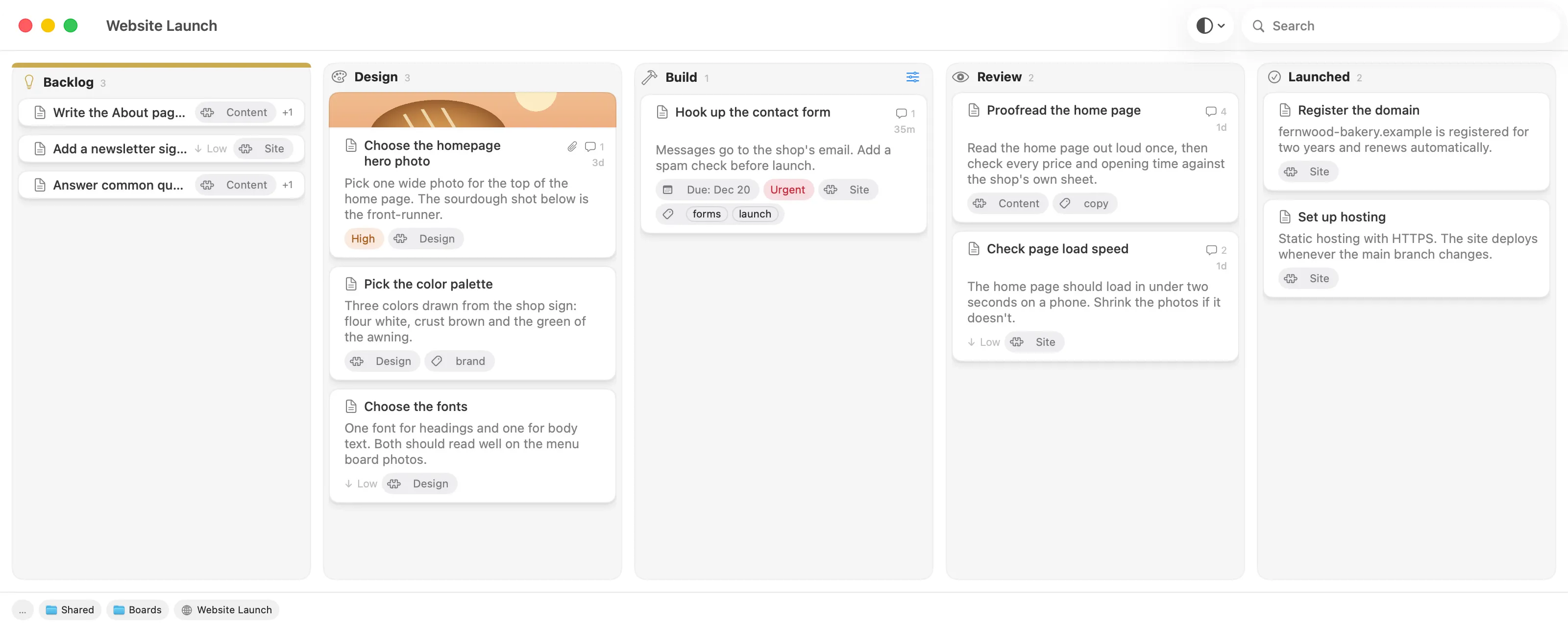
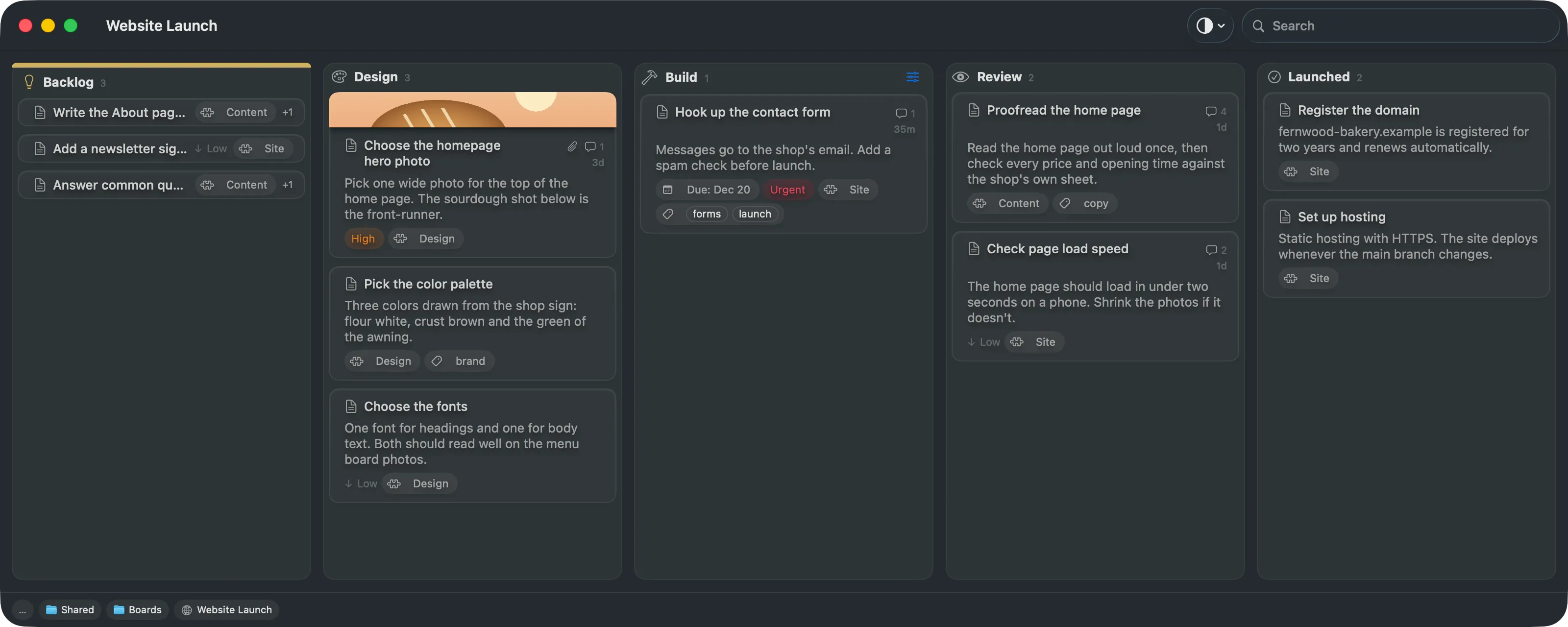
Section titled “The board window”Each board opens in its own window. Lanes run left to right, and the cards in a lane run top to bottom.
The toolbar
Section titled “The toolbar”The window title bar holds a toolbar. By default it shows Appearance and Search. Right-click the toolbar and choose Customize Toolbar… to add more items:
- New Card and New Lane
- Zoom In and Zoom Out
- Undo and Redo
Appearance switches the app between Auto, Light and Dark.
The status bar
Section titled “The status bar”The status bar along the bottom edge shows where you are as a row of pills: the folders above the board, the board itself, and then the lane or card you have selected. A selection of several items shows its count instead.
- Click a folder pill to open that folder. Click the board pill to reveal the board’s folder in Finder.
- Click a lane pill to select the lane.
- Click a card pill to scroll to the card, and double-click it to open the card window.
Turn the bar on or off with View ▸ Show Status Bar.
Open a large board
Section titled “Open a large board”When a large board takes a moment to open, a progress bar fills as the board is read. It stays full while the board is drawn.
Zoom the board
Section titled “Zoom the board”Use the View menu:
- Zoom In (⌘+)
- Zoom Out (⌘-)
- Actual Size (⌘0)
Zoom steps through eight sizes from 75% to 200%. It is a reading preference for you, not a setting of the board, so it applies to every board and is remembered when you quit.
See a board’s details
Section titled “See a board’s details”- Choose File ▸ Board Info (⌘I).
- Read the counts: Lanes, Cards, Attachments, and the Files, Size, Created and Modified of the folder on disk.
- Use the links at the bottom: Reveal in Finder, Open in Editor (the board’s description) and Board Settings….
Rename a board
Section titled “Rename a board”Open Board Info (⌘I), type a new name in the title field and press Return. The name you see is the board’s title, and the folder is not renamed.
Change a board’s icon
Section titled “Change a board’s icon”Choose Board ▸ Choose Icon… (⌥⌘S) with nothing selected. Or click the icon well in Board Info. Pick a symbol and a tint.
If cards or lanes are selected, Choose Icon… styles those instead. Click the empty backdrop to clear the selection first.
Open Board Settings
Section titled “Open Board Settings”Choose Board ▸ Board Settings…, or click Board Settings… in Board Info. The window holds the board’s own options in sections: Cards, Window, Images, Activity Log, Label Kinds and Description. Which keys they write is in Configuration.
Duplicate a board
Section titled “Duplicate a board”- Choose File ▸ Duplicate (⇧⌘S).
- Pick where to keep the copy and click Duplicate.
The copy opens in a new window. Cancelling does nothing.
Save a board as a template
Section titled “Save a board as a template”- Choose File ▸ Save as Template….
- Pick a name and folder. The file ends in
.lanework-template.
The template keeps the board, its lanes and its cards. Comments and attachments are left out. The template is added to the Recent section of the New Board window.
Share a board
Section titled “Share a board”Choose File ▸ Share… to send a copy of the whole board through the macOS share sheet. Exporting and printing a board are covered in Sharing and export.
Move a board to the trash
Section titled “Move a board to the trash”A board is a folder, so you remove it in Finder. Inside the app, deleted cards and lanes go to the board’s own trash:
- Send to Trash (⌘⌫) sends the selected cards or lanes to the trash.
- View ▸ Show Trash shows the trash as a column at the right of the board.
- Drag a card out of the trash column into a lane to restore it.
- Empty Trash… (⇧⌘⌫) permanently deletes everything in the trash, after a confirmation.
Give a board a new identity
Section titled “Give a board a new identity”A copied board folder has the same id as the original. If you copied the folder by hand, give the copy its own.
- Choose Board ▸ Give This Board a New Identity….
- Read the warning, then click Give It a New Identity.
Every Lanework link that names the board’s old id stops opening it, and you cannot undo this. The board’s id is described in Board.